
LightCut for iOS
LightCut is a free AI-powered video editor, packed with templates and video effects that allow you to easily create stylish videos and vlogs. With AI-based video editing, you can produce stunning videos with just one touch. Inspire Cam gives you the ability to record amazing videos like a pro.
In addition, you can trim, merge your video clips by adding text, music, stickers, effects, transitions, and everything you need to make a creative video. Simple yet powerful, LightCut is an all-in-one video editing app suitable for beginners as well as for professional users.
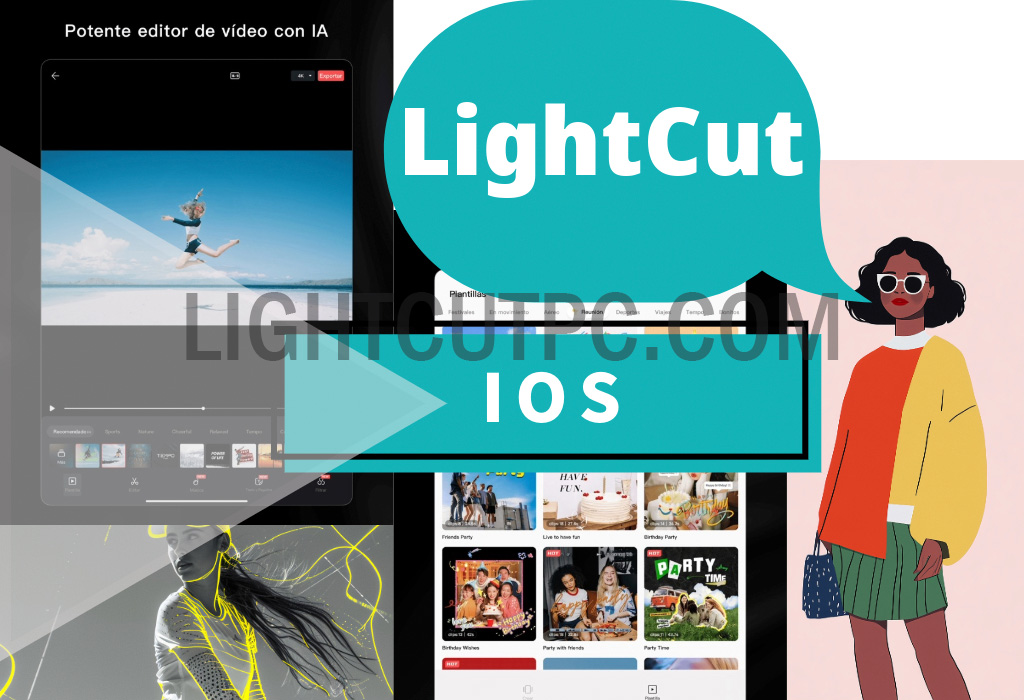
LightCut for Mac has become a highly recommended video editing app by DJI, designed to optimise the use of its drones and other equipment. This platform supports various hardware connections and offers the capability to preview videos in real-time, eliminating the need to export for a quick output.
It stands out for incorporating an auto-editing function powered by artificial intelligence, unique and exclusive video templates, inspirational tutorials for filming, and a wide catalogue of additional resources, making it a trusted recording and editing solution for DJI users.
Special features of LightCut Mac
Here are some of the tool’s best options:
Various video templates
- Intuitive templates: choose a style and pace, and the app automatically creates an engaging video.
- Styles for all tastes: travel, nature, urban, fashion, lifestyle, vlogs, sports, and more.
Recording modes with Inspire Cam: professional quality
If you're unsure about filming or editing, don't worry. Practical tutorials will guide you to capture great shots in various environments and, after filming, automatically generate a spectacular video, providing all the necessary tools in one place.
All-in-one video editor with advanced tools
Enjoy advanced editing tools that make it easy to create epic videos quickly.
Features such as the video cutter, speed adjustments, and the ability to split videos into clips instantly make your creations more attractive.
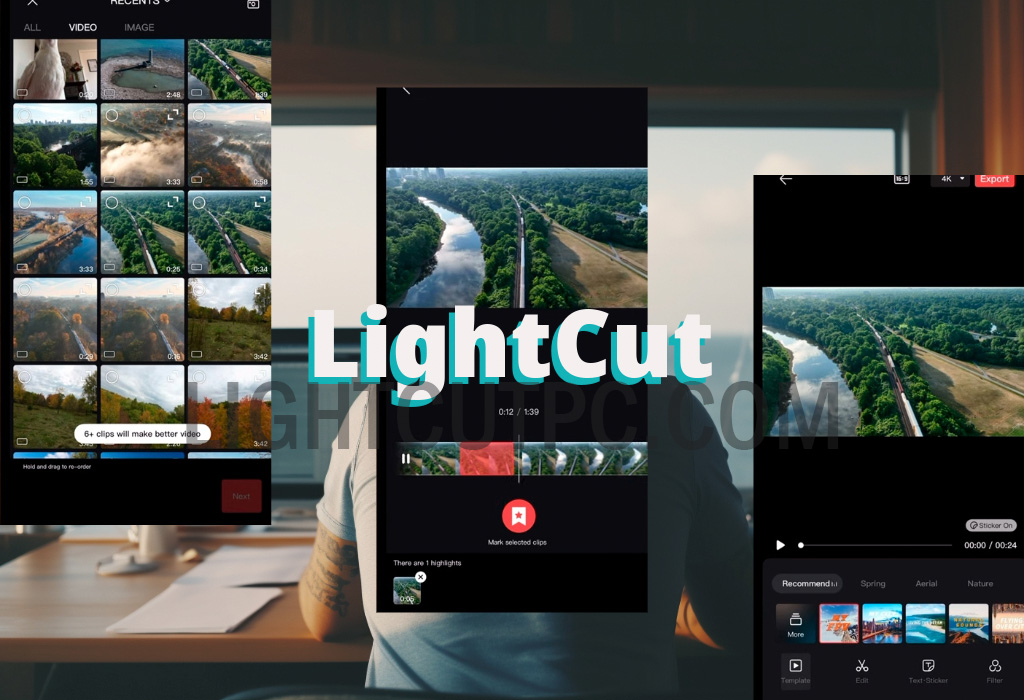
Also, add multiple stickers and text styles to boost your creativity.
Stunning diorama effects
Experiment with diorama effects to give your videos a unique miniature touch, perfect for urban scenes and more, achieving surprising results.
AudioMatch for aerial: automatically perfect sounds
The AI of LightCut can automatically add sound effects to your drone videos, choosing from themes such as forest, sea, countryside, or city.
Without manual edits, enhance the audio quality of your videos with an extensive library of professional sounds, taking your projects to the next level.
Download LightCut for Mac
You can download the app for free from the App Store. The iOS version offers the same features as the Android version, including AI-powered video editing, creative templates, and complete editing tools.
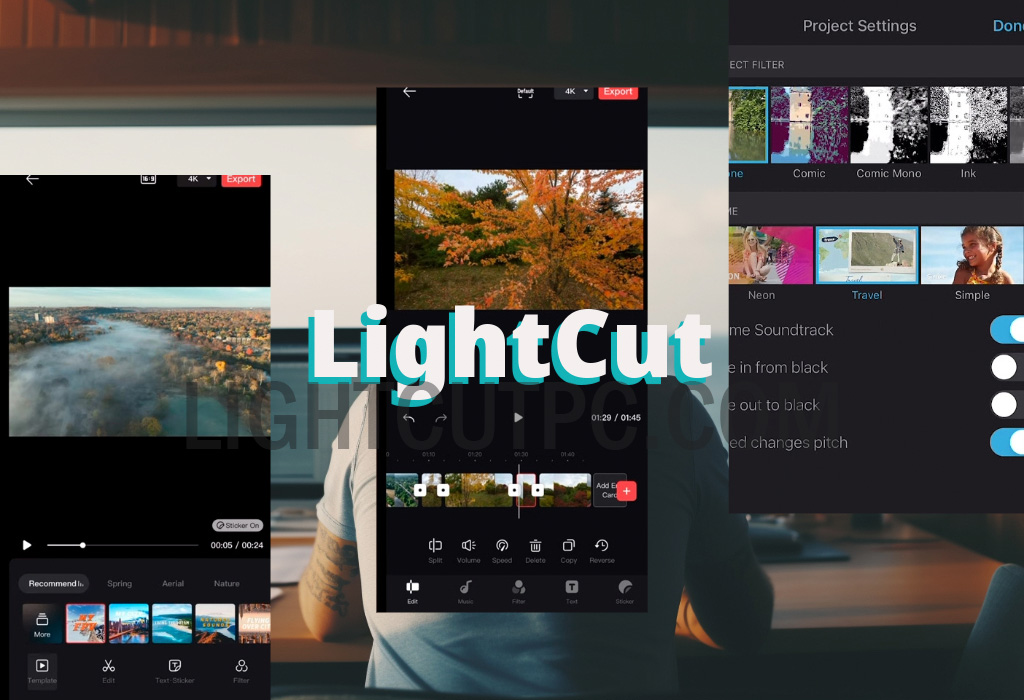
Enhance your audiovisual content with ease and precision.
Prerequisites for installing LightCut on iOS
Before proceeding with the download, make sure your device meets the following requirements:
- Operating system iOS 11.0 or later.
- Free space on the device, as the app occupies around 200 MB.
- Stable internet connection to download from the App Store.
Steps to download and install LightCut on an iOS device
Follow these steps to install LightCut on your iPhone or iPad:
Step 1: Access the App Store
On your iOS device, search for and open the App Store application. This is Apple's official app store, where you'll find LightCut for safe download.
Step 2: Search for LightCut in the App Store
In the App Store search bar, type "LightCut" and press the search button. The app should appear among the top results.
The official app is developed by DJI TECHNOLOGY CO., LTD.
Step 3: Download the app
Once you find LightCut in the search results, tap on the button that says Get. If this is the first time you're downloading this app, the system will prompt you to confirm the download using your Apple ID or Face ID, depending on your device's security settings.
Wait for the download to complete. This may take a few minutes, depending on your internet connection speed.
If you prefer to download the LightCut APK for free with all the official version features so you can install it anytime without needing an internet connection, click on the download button below.
Step 4: Install and open LightCut
Once downloaded, the app will automatically install on your device. When the installation is complete, you’ll see the LightCut icon on your home screen.
Tap the icon to open the application.
Compatible models
This product is compatible with the following Apple devices:
Latest generation:
iPhone 15 Pro Max, iPhone 15 Pro, iPhone 15 Plus, iPhone 15iPhone 14 Series:
iPhone 14 Pro Max, iPhone 14 Pro, iPhone 14 Plus, iPhone 14iPhone 13 Series:
iPhone 13 Pro Max, iPhone 13 Pro, iPhone 13, iPhone 13 miniiPhone 12 Series:
iPhone 12 Pro Max, iPhone 12 Pro, iPhone 12, iPhone 12 miniOther models:
iPhone 11 Pro Max, iPhone 11 Pro, iPhone 11, iPhone XS Max, iPhone XS, iPhone XR, iPhone X, iPhone 8
Initial setup of LightCut on iOS
Upon opening LightCut for the first time, the app may request permissions to access your gallery, camera, and other device resources.
These permissions are necessary for importing videos and optimising your editing experience.
Allow access to gallery and camera
When LightCut requests access to your gallery and camera, select Allow. This will ensure that you can load your videos for editing and save your creations directly to your device.
Explore LightCut's features
Once set up, you can start exploring LightCut's editing tools. The app offers a wide variety of filters, effects, and a "One-Tap Edit" function that suggests automatic improvements based on artificial intelligence.
By following these steps, you’ll have LightCut ready on your iOS device to start editing videos easily and professionally.
Install LightCut on a MacOS computer
Since LightCut doesn't have a native version for macOS, you can install it on a Mac using an Android emulator.
One of the recommended emulators is BlueStacks, which allows Android applications to run on Mac computers with ease.
Below is a summary of the steps to use LightCut on your Mac. If you prefer a detailed tutorial, you can find it HERE.
Download and install BlueStacks on the Mac
To install LightCut on a Mac, you first need to install an Android emulator such as BlueStacks.
Set up BlueStacks and access Google Play Store
Once BlueStacks is installed, open it and follow the initial setup process. This includes signing in to your Google account to access the Google Play Store within the emulator.
Find and install LightCut on BlueStacks
In the BlueStacks interface, open the Google Play Store and search for "LightCut". Select the official app and tap Install. Installation will take a few minutes, depending on your internet speed.
Launch LightCut on BlueStacks
Once installed, open LightCut from the main screen of BlueStacks. The app will work as it does on any Android device, allowing you to edit videos and use all its tools directly on your Mac.
Note that using LightCut on an emulator may require more system resources, so it’s recommended to close other applications during use to enhance performance. Although the experience may differ from that on an iOS device, it is an excellent alternative for those who wish to use LightCut on a Mac.
By following these steps, you can enjoy LightCut on both your iOS device and Mac computer, leveraging all its features to create high-quality videos.
LightCut FAQs
These are the most frequently asked questions about the app:
How do I adjust video speed in LightCut?
In LightCut, you can adjust the speed of individual clips.
This includes the option to speed up or slow down the video from the editing panel, a useful feature for creating slow or fast motion effects.
Can I export videos in specific formats for social media?
Yes, LightCut allows you to set the video aspect ratio for specific formats, such as 16:9 for YouTube or 9:16 for TikTok and Instagram Stories.
This makes it easier to prepare content for different platforms without needing additional editors.
Does LightCut include special effects for videos?
The app offers various visual effects and filters that can be applied to videos.
Some effects are specifically designed for outdoor videos or certain shots, like underwater recordings.
Can I trim and split clips in LightCut?
Yes, LightCut lets you easily trim and split clips from its editing interface. This includes options to delete specific sections, apply transitions, and rearrange clips within a project.
Are there ads or watermarks in LightCut?
No, LightCut does not include ads or watermarks in exported videos, allowing users to achieve a clean result without distractions or extra costs.
What resolution formats does LightCut offer?
LightCut enables video export in resolutions of up to 1080p, with options for 720p and 480p. Users can choose the resolution and aspect ratio of their videos upon export, although 4K is not currently supported.